Safari also stores the cache memory like all another browser. Cache memory speeds up the sites we usually access frequently. Before we go into deep let’s know something about cache memory. Whenever we browse any new site in our browser, it stores some of the data of that site so in future if we again want to access that site it loads fast. But sometimes it creates the problem for us like you want to access the site but your browser didn’t show you any update of that site.
How to Clear Cache on iPhone
Cache memory takes a lot of space in your phone memory. Cache memory never refreshes the data so we have to delete the cache memory on time. Today we are going to talk about how to clear cache on IPhone. There is a lot of ways to do it, you can do it by yourself or there is many third party software which will help you in this.
How to clear Browser cache on iPhone
Let’s start the process of the clear cache of safari browser. You can do the similar steps to clear the cache of any other browser.
Step 1: Launch the “Settings” from the Home screen of your iPhone.
Step 2: Scroll down and search “Safari”, tap on that.
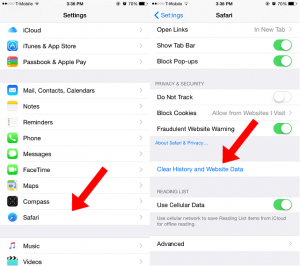
Step 3: Now scroll all the way to the bottom and you’ll see”Clear history and website data” tap on that.
After choosing this option, it will remove all browser History, cookies, and other data. In other words, your pre-set credentials, the websites that you visited, and cache are not longer there anymore. Safari will be a brand new browser just like when you first open it.
How to Clear App Cache on iPhone
There is no choice on iPhone to clear app cache of a particular application unless you uninstall it from your device. There is only one way to do it, you have to uninstall that app from your device so it will automatically delete cache of that app.
An ideal approach to clear app cache is to utilise the third-party app. You can install these apps from App store. The Battery Doctor is also a third-party app who keeps records of your all apps and manages them. You can install Battery Doctor app from App store in free. Once the application is install it will introduce at your home screen. Now you can clear app cache, to does that follow the given steps:-
Step 1: Tap on the “Battery Doctor” icon on the Home screen.
Step 2: After app starts look at the bottom of the app, you will see an option like Status, Charge, Memory, Junk, and Market. Tap on “Junk”.
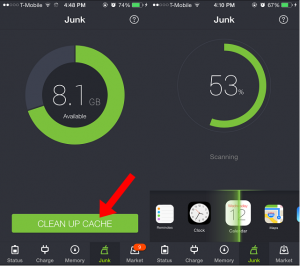
Step 3: Tap on the “Clean Up Cache”. Junk cleaning feature will remove your temporary files from applications, which may include game progress and cache data.
After the process complete it will give you the result, how much the data deleted and available space also.
How to Boost iPhone Speed and Performance
There is another feature of the app which I liked the most is Memory Boost. There are some apps which we didn’t need and still running in the background. These apps used RAM and making our phone slower also. So we might be not able to open some new apps. Now with the help of Memory Boost, we can clear RAM and prevents getting slower.
Step 1: In Battery Doctor App you saw an option “Memory”, tap on that.
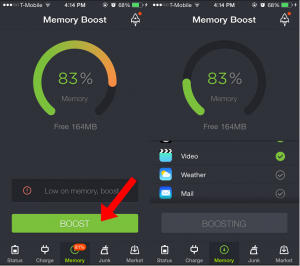
Step 2: Tap on “Boost”, it process and shows you how much your RAM is free to use again.
Now you know how to clear browser cache on iPhone and How to Clear App Cache on iPhone. I hope it will help you to boost up your iPhone. Share this article with others so, they also get to know about that. If you have any kind of query please share with us through comment.